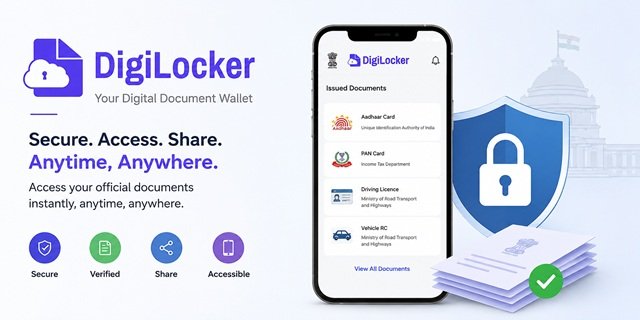
DigiLocker is the Government of India’s official digital document wallet. It lets you securely store, access, share, and verify government-issued documents from your mobile phone or computer. Instead of carrying physical copies of your Aadhaar Card, PAN Card, Driving Licence, Vehicle RC, marksheets, or certificates, you can access their digital versions anytime through DigiLocker.
The platform connects directly with government departments and authorised organisations. This means you can fetch original digital documents from the issuing authority instead of uploading scanned copies yourself. These documents are accepted by many government departments, educational institutions, banks, airports, and traffic police wherever valid digital documents are permitted.
As of 2026, DigiLocker has more than 70 crore registered users and over 900 crore issued documents. It is developed and maintained by the National e-Governance Division (NeGD) under the Ministry of Electronics and Information Technology (MeitY) as part of the Digital India programme. You can access the service through the official DigiLocker Portal or the DigiLocker mobile app.
What is DigiLocker and How Does It Work?
DigiLocker acts as a secure bridge between citizens and authorised document-issuing organisations. After creating your account and completing Aadhaar verification, you can fetch documents directly from the issuer’s official database into your DigiLocker account.
For example, your Driving Licence is fetched from the transport department, your PAN Card from the Income Tax Department, and your marksheets from the respective education board or university. Since these documents come directly from the issuing authority, they remain digitally signed and can be verified online whenever required.
This is the biggest difference between DigiLocker and simply storing scanned copies on your phone. Documents available under the Issued Documents section are official digital records issued by the concerned authority. They are digitally signed, can be verified instantly, and are legally recognised under the Information Technology Act, 2000 and the Digital Locker Rules, 2016.
DigiLocker is currently available in 12 Indian languages, including English, Hindi, Assamese, Bengali, Gujarati, Kannada, Malayalam, Marathi, Odia, Punjabi, Tamil, and Telugu, making it accessible to users across the country.
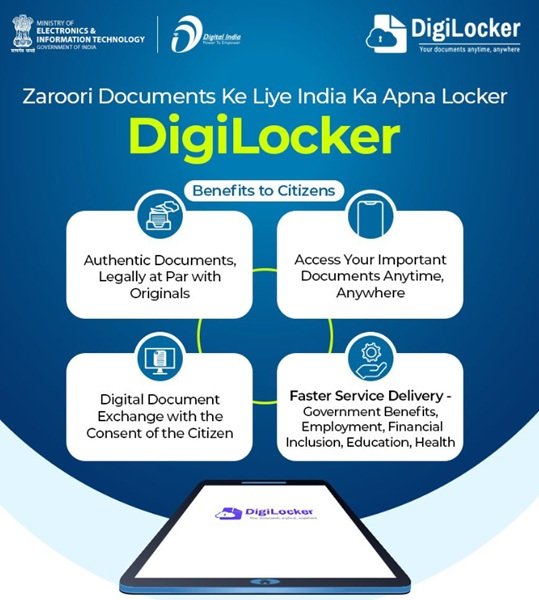
DigiLocker in Numbers (2026)
- More than 70 crore registered users across India.
- Over 900 crore digital documents issued through the platform.
- More than 2,100 registered issuers, including government departments, universities, education boards, and authorised private organisations.
- Over 2,600 requesters, such as banks, insurance companies, employers, and government agencies.
- More than 2,000 e-Governance services are integrated with DigiLocker.
- Officially launched on 1 July 2015 under the Digital India programme.
- Estimated annual administrative savings of around ₹1,200 crore, as mentioned in a Lok Sabha reply.
- Certified for information security under ISO/IEC 27001:2022 and ISO/IEC 27034.
Issued Documents vs DigiLocker Drive: Understand the Difference
Every DigiLocker account has two separate sections: Issued Documents and DigiLocker Drive. Many users think both are the same, but they serve completely different purposes. Understanding this difference helps you know which documents are legally valid and which are meant only for personal storage.
Issued Documents
Issued Documents are fetched directly from the official database of the issuing authority. They are not scanned copies uploaded by you. Instead, DigiLocker retrieves them securely from the department that originally issued the document.
For example, your Driving Licence can be fetched from the transport department, your Aadhaar from UIDAI, your PAN from the Income Tax Department, and your marksheets from the respective education board or university.
These documents carry the issuing authority’s digital signature and can be verified online in real time. Under the Information Technology (Preservation and Retention of Information by Intermediaries Providing Digital Locker Facilities) Rules, 2016, digitally issued records available in DigiLocker are treated as legally valid electronic documents wherever they are accepted under applicable law.
DigiLocker Drive
DigiLocker Drive is your personal cloud storage space that provides 1 GB of free storage. You can upload your own documents, such as medical records, insurance papers, property documents, old certificates, photographs, or any other important files that you want to keep safely online.
You can also use DigiLocker’s eSign facility to digitally sign eligible uploaded documents. However, uploading a document does not make it government-verified.
Remember: Documents stored in DigiLocker Drive are only personal copies. Since they are uploaded by the user and not issued by a government authority, they do not have the same legal status as documents available under the Issued Documents section. Whenever an organisation specifically asks for a verified digital document, always use the document available in the Issued Documents section.
Legal Validity: Where DigiLocker Documents Are Accepted
Documents available under the Issued Documents section of DigiLocker are digitally issued by the concerned authority and are recognised under the Information Technology Act, 2000 and the Information Technology (Preservation and Retention of Information by Intermediaries Providing Digital Locker Facilities) Rules, 2016. Over the years, several ministries and regulators have also issued notifications and circulars allowing DigiLocker documents to be used for verification across different sectors.
- Traffic Police: Driving Licence and Vehicle Registration Certificate (RC) available in DigiLocker are accepted during vehicle checks. The Ministry of Road Transport and Highways (MoRTH) notified this through amendments to the Central Motor Vehicles Rules.
- Airports: The Bureau of Civil Aviation Security (BCAS) and the Central Industrial Security Force (CISF) permit passengers to use eligible DigiLocker documents as identity proof at airports, subject to the latest security guidelines.
- Indian Railways: DigiLocker documents such as Aadhaar Card and Driving Licence are accepted as valid identity proof during train journeys wherever government-issued identity documents are required.
- Banks and Financial Institutions: The Reserve Bank of India (RBI) allows regulated entities to use Officially Valid Documents (OVDs) obtained through DigiLocker for KYC in accordance with the RBI Master Direction on KYC.
- Insurance Companies: The Insurance Regulatory and Development Authority of India (IRDAI) has directed insurers to integrate with DigiLocker for issuing and sharing digital insurance documents.
- Stock Market and Securities: The Securities and Exchange Board of India (SEBI) permits the use of DigiLocker documents for KYC and has also expanded DigiLocker integration for investor-related services.
- Government Offices: Many Central and State Government departments accept DigiLocker documents during service delivery, verification, and application processing wherever digital documents are permitted.
- Educational Institutions and Employers: Digitally issued marksheets, certificates, and academic records available through DigiLocker are widely used for admissions, recruitment, and document verification.
Important: This legal recognition applies only to documents available under the Issued Documents section. Documents uploaded by users to their personal DigiLocker Drive do not automatically receive the same legal status.
Documents Available on DigiLocker
DigiLocker allows citizens to access thousands of government-issued digital documents from authorised issuers. The exact documents available in your account depend on which organisations are integrated with DigiLocker and the services available in your state.
Identity Documents
- Aadhaar Card (UIDAI)
- PAN Card
- Voter ID (Election Commission of India)
- Passport-related records
- APAAR ID and Academic Bank of Credits documents
Transport Documents
- Driving Licence
- Vehicle Registration Certificate (RC)
- Vehicle Insurance Policy
- Pollution Under Control (PUC) Certificate
Education Documents
- CBSE Class 10 and Class 12 marksheets and certificates
- CISCE (ICSE and ISC) certificates
- State Board marksheets and certificates
- University degree and diploma certificates through NAD
- CTET certificates
- ITI and vocational training certificates
Health Documents
- ABHA linked health records
- CoWIN vaccination certificates
- Unique Disability ID (UDID) documents
Government Certificates
- Ration Card
- Caste Certificate
- Income Certificate
- Domicile or Residence Certificate
- Birth Certificate
- Property Tax records available from participating local bodies
Financial Documents
- Form 26AS and Annual Information Statement (AIS)
- Life Insurance policies issued through integrated insurers
- National Pension System (NPS) records
- Investor-related documents from participating financial institutions
Skill Development Documents
- National Skill Development Corporation (NSDC) certificates
- Pradhan Mantri Kaushal Vikas Yojana (PMKVY) certificates
Sports and Other Certificates
- Sports achievement certificates issued by participating sports authorities
- Other certificates issued by integrated government departments and authorised organisations
DigiLocker is connected with thousands of authorised issuers across India, including Central Government ministries, State Government departments, universities, education boards, municipal bodies, financial institutions, and public sector organisations. New issuers and services are added regularly. You can explore the latest list of participating issuers through the official DigiLocker Issuers Directory.
How to Create a DigiLocker Account
Creating a DigiLocker account is free and usually takes only a few minutes. You only need an active mobile number. However, linking your Aadhaar is recommended because it allows you to access most DigiLocker services and fetch government-issued documents.
Step 1: Visit the official DigiLocker Portal or open the DigiLocker mobile app. Click Sign Up.
Step 2: Enter your mobile number and verify it using the OTP sent to your phone.
Step 3: Create your username and set a 6-digit Security PIN. Your DigiLocker account will be created successfully.
Step 4: Open your profile and select Link Aadhaar. Enter your Aadhaar number and verify it using the OTP sent to your Aadhaar-linked mobile number.
After Aadhaar verification, you can start accessing government-issued digital documents and other DigiLocker services. Some documents may appear automatically, while others can be fetched manually from the respective issuing authority.
Important: One Aadhaar number can be linked with only one DigiLocker account. If your Aadhaar is already linked to another account, you must recover that account instead of creating a new one.
How to Get Documents in DigiLocker
After linking your Aadhaar, you can fetch documents issued by participating government departments, education boards, universities, and other authorised organisations.
Step 1: Log in to your DigiLocker account and click Search Documents.
Step 2: Search for the document you need or browse by category such as Identity, Transport, Education, Health, or Finance.
Step 3: Select the issuing organisation. For example, choose CBSE for marksheets or the Transport Department for your Driving Licence.
Step 4: Enter the details requested by the issuer, such as your roll number, registration number, date of birth, or other required information.
Step 5: Once the details are verified, the document is fetched directly from the issuer’s database and saved in your Issued Documents section.
You can access these documents anytime without requesting them again.
How to Share DigiLocker Documents
DigiLocker allows you to securely share your digital documents without sending scanned copies.
Share with an Organisation
Many banks, government departments, educational institutions, and employers are integrated with DigiLocker. During verification, they can request access to your documents. After you provide your consent, the required document is shared securely through DigiLocker.
Share a Secure Link
Open the required document from the Issued Documents section and select Share. DigiLocker generates a secure link that you can send to the recipient for online verification.
Show the Document on Your Phone
You can also open the document in the DigiLocker app and show it directly whenever digital documents are accepted. Many documents include a QR code that allows instant verification by the concerned authority.
How to Upload Documents to DigiLocker Drive
DigiLocker Drive gives every user 1 GB of free cloud storage for storing personal documents.
Step 1: Log in to DigiLocker and open the Drive section.
Step 2: Click Upload File and choose the document from your device.
Step 3: Wait for the upload to finish. Your document will now be available in your DigiLocker Drive.
Step 4: If required, use the eSign feature to digitally sign eligible documents after Aadhaar authentication.
Remember: Documents stored in DigiLocker Drive are personal uploads. They are not verified by the issuing authority and should not be confused with documents available in the Issued Documents section.
DigiLocker Mobile App
The official DigiLocker mobile app is developed by the National e-Governance Division (NeGD) under the Ministry of Electronics and Information Technology. It allows you to access your documents, fetch new records, upload files, and share documents directly from your smartphone.
- Android: Download from Google Play
- iPhone: Download from the App Store
Safety Tip: Always download DigiLocker only from the official Google Play Store or Apple App Store links. Before installing, verify that the publisher is the Government of India. Never share your OTP, Aadhaar details, or Security PIN with anyone.
Ways to Log in to DigiLocker
You can access your DigiLocker account using any of the following methods.
- Mobile Number and OTP: Enter your registered mobile number and verify it using the OTP.
- Username and Security PIN: Log in using the username and 6-digit Security PIN created during registration.
- MeriPehchaan Single Sign-On (SSO): If you have a MeriPehchaan account, you can sign in to DigiLocker through the official MeriPehchaan portal without creating a separate login.
DigiLocker Security and Privacy
DigiLocker is designed with multiple security measures to protect users’ personal information and digital documents. The platform follows recognised information security standards, including ISO/IEC 27001:2022 for Information Security Management and ISO/IEC 27034 for Application Security.
Documents and personal information are transmitted over secure encrypted connections. Access to your DigiLocker account is protected through authentication methods such as OTP verification, Security PIN, and, on supported smartphones, biometric authentication like fingerprint or Face ID. Documents are shared only after your consent whenever a requesting organisation asks for access.
To keep your account secure, always use the official DigiLocker website or mobile app, never share your OTP or Security PIN with anyone, and log out after using DigiLocker on a shared or public device.
What is EntityLocker?
EntityLocker is the organisational version of DigiLocker developed for businesses and non-individual entities. Instead of storing personal documents, it enables organisations to securely manage important business records in digital form.
Companies, MSMEs, trusts, societies, startups, government organisations, and other eligible entities can use EntityLocker to store, access, and share documents such as incorporation certificates, licences, registrations, compliance records, and other official documents through a secure digital platform.
Like DigiLocker for citizens, EntityLocker supports secure document sharing with authorised organisations whenever required. Eligible organisations can access the service through the official EntityLocker Portal.
DigiLocker Across Different States
DigiLocker is a Central Government platform, but the documents available in your account depend on whether your state government, education board, university, or local authority has integrated with the service.
Many states already provide documents such as marksheets, birth certificates, caste certificates, income certificates, domicile certificates, property tax records, and other citizen services through DigiLocker. However, the available services differ from one state to another and continue to expand as new departments join the platform.
You can check the latest list of participating state departments and issuers on the official DigiLocker States Directory. If a particular document is not available today, it may become available once the concerned department integrates with DigiLocker.
Common DigiLocker Problems and Their Solutions
OTP Not Received
Make sure your registered mobile number has network coverage and can receive SMS messages. Wait for a few minutes and use the Resend OTP option if required. If the problem continues, try again after some time or contact DigiLocker Support.
Aadhaar Already Linked to Another DigiLocker Account
One Aadhaar Card number can be linked with only one DigiLocker account. If your Aadhaar is already linked elsewhere, recover your existing account using the Forgot Username or Forgot Security PIN option instead of creating a new account.
Document Not Available in the Issued Documents Section
Not every document appears automatically after registration. Open Search Documents, choose the relevant issuing authority, and fetch the document manually by entering the required details such as your roll number, registration number, or vehicle number.
Name or Date of Birth Does Not Match
If your Aadhaar details do not match the records maintained by the issuing authority, DigiLocker may not be able to fetch your document. Update the incorrect information with the concerned department first. If required, you can also update your Aadhaar details before trying again.
Driving Licence or RC Not Accepted
Driving Licence and Vehicle Registration Certificate available under the Issued Documents section are recognised under the applicable Ministry of Road Transport and Highways notifications. If required, ask the verifying officer to scan the QR code available on the document for online verification.
Forgot Security PIN
If you cannot log in because you forgot your Security PIN, click Forgot Security PIN on the login page and complete the OTP verification to create a new PIN.
DigiLocker Portal or App Not Working
Temporary technical issues or scheduled maintenance may occasionally affect the portal or mobile app. You can check the latest updates on the official DigiLocker website or contact DigiLocker Support if the problem continues.
DigiLocker Documents vs Physical Documents
| Physical Documents | DigiLocker Issued Documents |
|---|---|
| Can be damaged, lost, or stolen. | Stored securely in your DigiLocker account and can be accessed anytime. |
| Verification usually requires manual checking. | Can be verified digitally through the issuing authority. |
| You must carry physical copies. | Documents can be accessed using your mobile phone or computer. |
| Photocopies may require self-attestation. | Issued Documents are digitally signed by the issuing authority. |
| Need separate copies for sharing. | Can be securely shared online with organisations or individuals. |
Important: This comparison applies only to documents available in the Issued Documents section. Files uploaded to your personal DigiLocker Drive are meant for storage and do not automatically have the same legal recognition as digitally issued records.
Quick Reference
| Service | Details |
|---|---|
| Official Website | Visit DigiLocker Portal |
| Android App | Download from Google Play |
| iPhone App | Download from the App Store |
| MeriPehchaan Login | Sign in with MeriPehchaan |
| DigiLocker Support | Help & Support Portal |
| EntityLocker | EntityLocker for Organisations |
| Browse All Issuers | View Issuer Directory |
| State-wise Issuers | View State-wise Issuers |
| Developed By | National e-Governance Division (NeGD), Ministry of Electronics and Information Technology (MeitY), Government of India |
| Launch Date | 1 July 2015 |
| Legal Framework | Information Technology Act, 2000 and Digital Locker Rules, 2016 |
| Free Storage | 1 GB DigiLocker Drive Storage |
| Charges | Free for all citizens |
Frequently Asked Questions
Q. Is DigiLocker free to use?
Yes. DigiLocker is a free digital document service provided by the Government of India under the Digital India programme. There is no fee for creating an account, linking Aadhaar, fetching government-issued documents, sharing documents, or storing personal files in DigiLocker Drive.
Q. Is DigiLocker safe?
Yes. DigiLocker follows recognised information security standards, including ISO/IEC 27001:2022 and ISO/IEC 27034. Your account is protected through OTP verification, Security PIN, and supported biometric authentication. Documents are shared only after your consent whenever an organisation requests access.
Q. What is the difference between Issued Documents and DigiLocker Drive?
Issued Documents are fetched directly from authorised issuing departments such as UIDAI, the Transport Department, education boards, or universities. These documents are digitally signed and recognised under the DigiLocker Rules, 2016. DigiLocker Drive, on the other hand, is your personal cloud storage where you upload your own files. Documents stored in Drive are not government-verified.
Q. Can I show my DigiLocker Driving Licence to the traffic police?
Yes. Driving Licence and Vehicle Registration Certificate available in the Issued Documents section are accepted under the applicable Ministry of Road Transport and Highways notifications. If required, the verifying officer can scan the QR code on the document to confirm its authenticity.
Q. Can I create more than one DigiLocker account?
One Aadhaar number can be linked with only one DigiLocker account. If you cannot access your existing account, use the Forgot Username or Forgot Security PIN option instead of creating a new account.
Q. What happens if I delete my DigiLocker account?
Documents available under the Issued Documents section can usually be fetched again after creating a new account and completing the required verification, provided the issuing authority continues to offer them through DigiLocker. However, documents that you personally uploaded to DigiLocker Drive are deleted along with the account, so it is advisable to keep a separate backup.
Q. My document is not available in DigiLocker. What should I do?
First, ensure that your Aadhaar is linked to your DigiLocker account. Then use the Search Documents option to fetch the document manually from the relevant issuer. If the document is still unavailable, the issuing department may not yet be integrated with DigiLocker. You can check the latest list of participating issuers on the official DigiLocker portal.
Q. Can NRIs use DigiLocker?
DigiLocker registration requires mobile number verification. Eligible users who can complete the registration requirements and possess supported Indian government-issued documents can use the platform. The services available may depend on the documents linked to their account.
Q. Is DigiLocker accepted at airports?
Eligible DigiLocker identity documents are accepted at airports in accordance with the guidelines issued by the Bureau of Civil Aviation Security (BCAS). Passengers should ensure they carry an accepted identity document available in the Issued Documents section.
Q. What is EntityLocker?
EntityLocker is the organisational version of DigiLocker. It enables companies, MSMEs, trusts, societies, government organisations, and other eligible entities to securely store, manage, and share official business documents through a government-backed digital platform.
Q. How can I contact DigiLocker Support?
If you face technical issues, account problems, or document-related errors, visit the official DigiLocker Support Portal and raise a support request. If the issue relates to a specific document, such as a marksheet, Driving Licence, or certificate, you may also need to contact the concerned issuing department because DigiLocker cannot modify documents issued by other authorities.

Tabassum is a government document researcher and writer with over 5 years of experience exclusively dedicated to tracking and simplifying Central and State Government document processes across India. She has researched and published detailed guides on 100+ government documents and certificates – including Aadhaar Card, PAN Card, Ration Card, Domicile Certificate, and Birth Certificate – covering all states and the Central Government, helping lakhs of Indian citizens successfully complete their paperwork in simple, easy-to-understand language.